How to Put a Planner on Your Kindle Scribe (and Write Directly on It)
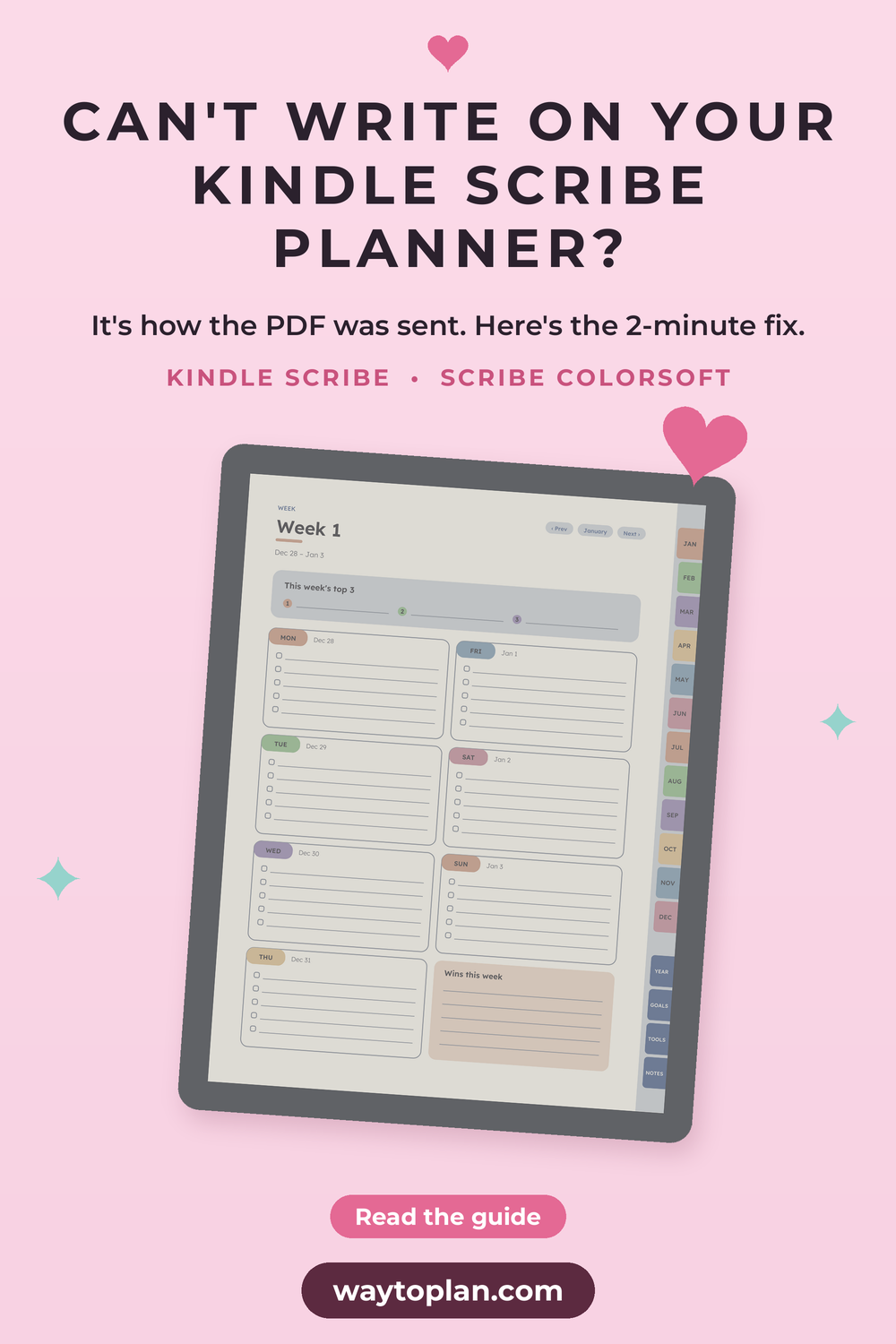
Step by step: how to get a PDF planner onto your Kindle Scribe or Scribe Colorsoft with Send to Kindle, so you can tap the links and write directly on every page.
You bought a planner for your Kindle Scribe, you downloaded the file, and now you want to write on it. The good news: it takes a few minutes, and you don’t need a cable. The one thing that matters is how you send the file, because only PDFs sent the right way let you write directly on the page.
This guide covers the Kindle Scribe and the color Kindle Scribe Colorsoft. The steps are the same for both.
Before you start: unzip and pick your version
Most e-ink planners, including ours, come as a ZIP file with several PDFs inside. Unzip it first (on an iPhone, tap the ZIP in the Files app) and choose the one PDF you want to use:
- Kindle Scribe or Scribe Colorsoft? Pick the file made for your screen. The Colorsoft versions are designed in soft color. The Kindle Scribe versions are designed in greyscale, so they stay crisp on a black-and-white screen.
- Right- or left-handed? Left-handed versions put the tabs on the left, so your hand doesn’t cover them while you write.
- Monday or Sunday start? Pick whichever matches how you think about your week.
Only send the PDF you’ll actually use. Your Library stays tidy, and you won’t have to remember which copy has your notes in it.
Option 1: Send to Kindle website (easiest)
- On your computer, go to amazon.com/sendtokindle and sign in with the Amazon account your Kindle uses.
- Drag your PDF into the upload box, or click to select it.
- Click Send.
- On your Kindle Scribe, make sure Wi-Fi is on and open your Library. The planner appears within a minute or two.
The website accepts files up to 200 MB. Our Kindle planners are only a few MB each, so size is never a problem.
Option 2: Email it to your Kindle Scribe
- Find your Kindle’s Send to Kindle email address. It’s on your Kindle under Settings > Your Account, and in your Amazon account under Manage Your Content and Devices > Preferences > Personal Document Settings.
- In those same Personal Document Settings, add the email address you’ll send from to the Approved Personal Document E-mail List. Amazon ignores emails from addresses that aren’t on the list.
- Email the PDF as an attachment to your Kindle address. Leave the subject line empty, and never type “convert” in it: that turns the PDF into a Kindle book, which breaks the layout and the links.
Why not just use a USB cable?
You can copy a PDF over USB, but Amazon doesn’t support handwriting on PDFs loaded that way. You could read the planner, but not write on it. Always use Send to Kindle (the website or email) for anything you want to write on.

How to use your hyperlinked planner
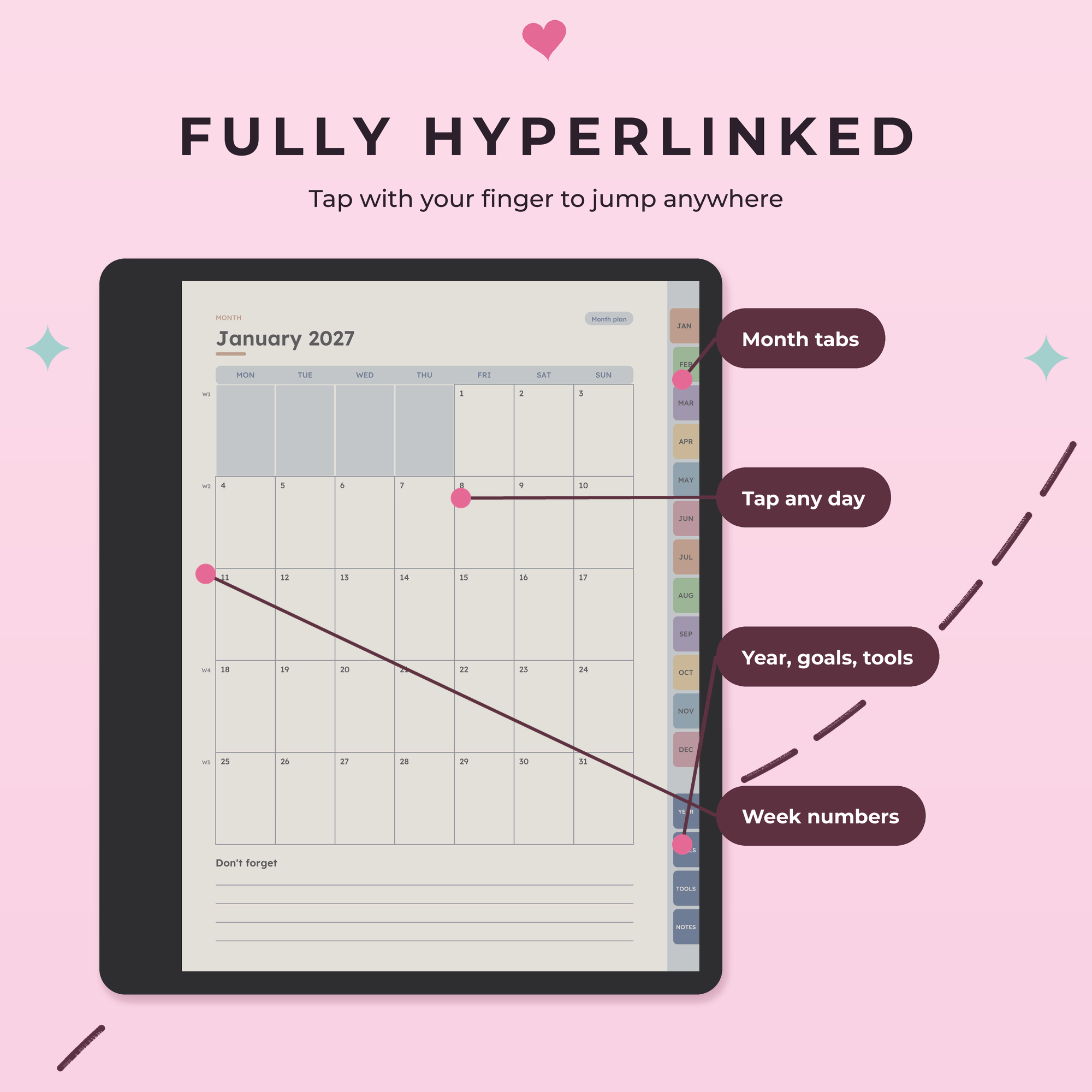
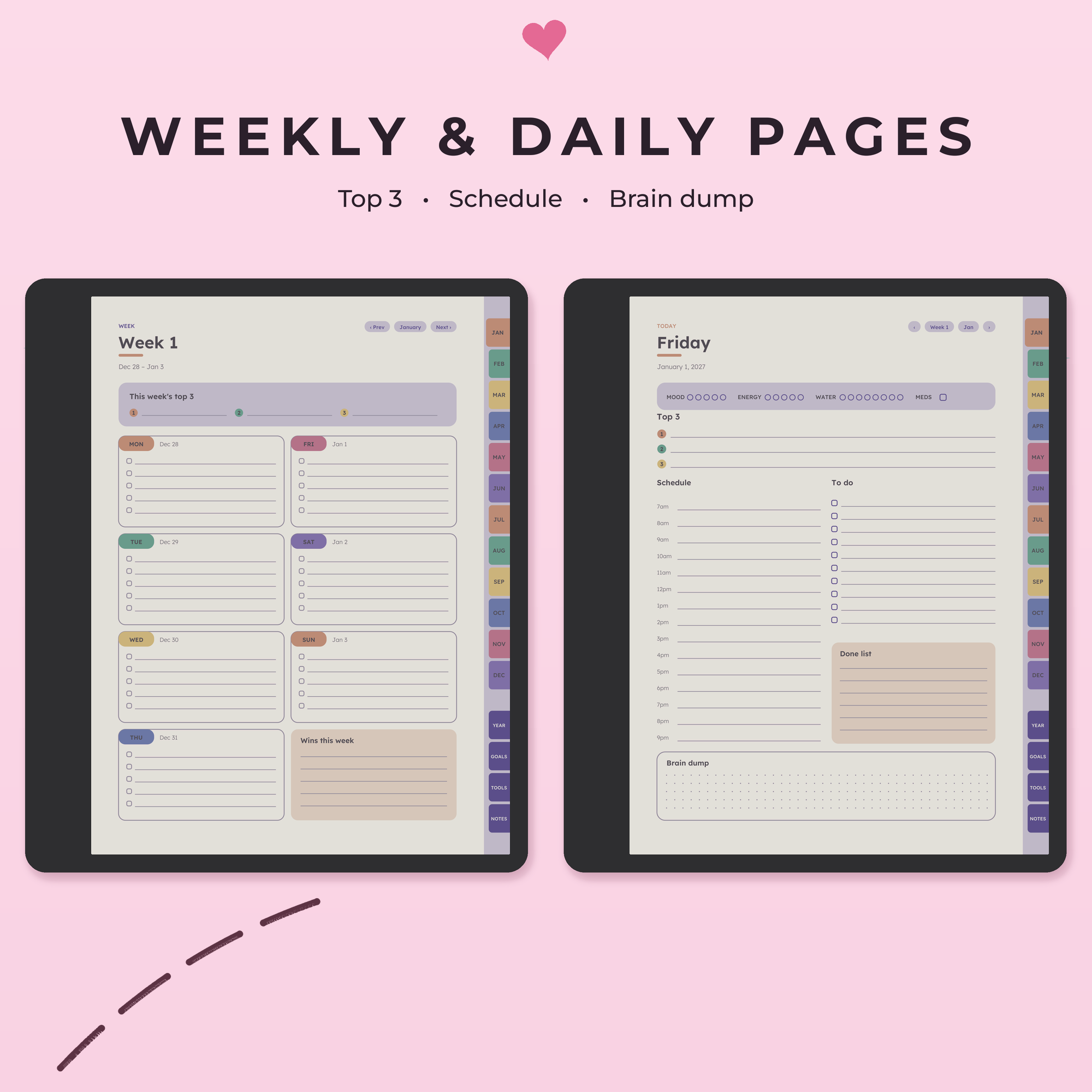
- Tap links with your finger. The tabs, dates and buttons are links. Use your finger to jump around and your pen to write, so a link doesn’t open by accident while you’re writing.
- Write directly on any page, just like a notebook. Use the eraser end of the pen to fix mistakes.
- Use the year page as home base. Most planners link back to it from every page. In ours, every date on the calendar jumps straight to that day.
- Make it one tap away. Your planner sits in your Library next to your books. Open it once in the morning and it’s waiting where you left off.
- On the Colorsoft, color-coded tabs make it easy to spot the right month or section at a glance.
Good to know: PDFs vs Kindle notebook templates
The Kindle Scribe has its own notebooks with built-in templates, but you can’t add your own files to that template list. That’s why planners for the Scribe come as PDFs. You also can’t add or duplicate pages inside a PDF on the Scribe, so a good planner already includes every page you’ll need: all 365 days, extra notes pages and trackers.
Troubleshooting
- I can’t write on the pages. The file was probably copied over USB or converted. Delete it from your Kindle and send the original PDF again with Send to Kindle, with nothing in the email subject line.
- The page looks small, or there are white bars. You probably have a version made for a different screen shape. Check that the file name says Kindle Scribe or Kindle Scribe Colorsoft.
- A link doesn’t work. Tap it with your finger, not the pen, and give the page a moment to load. E-ink screens are a little slower than a phone.
- I can’t find the planner. In your Library, filter by documents, and check that your Kindle is on Wi-Fi. If you emailed it, check that your address is on the approved list.
Ready to plan on your Kindle Scribe?
Every Way to Plan template is made for one specific screen, fully hyperlinked and designed with ADHD brains in mind: calm layouts, just 3 priorities a day and big tap targets. Right- and left-handed versions are always included.
- Kindle Scribe Colorsoft templates: soft color, made for the color screen
- Kindle Scribe templates: crisp greyscale designs for the classic Scribe
Start with the ADHD Planner 2027 for Kindle Scribe Colorsoft or the ADHD Planner 2027 for Kindle Scribe: every date of 2027 is linked, with a 14-tool ADHD toolkit built in. Want everything at once? The bundle has 9 planners, including meal, cleaning, budget and habit trackers: get the Colorsoft bundle or the Kindle Scribe bundle.
Planning on a Supernote instead? Read how to add PDF planners to your Supernote Nomad and Manta.
Save this guide for later
Pin it to your Pinterest board so you can find it again when you need it.