How to Import Templates to Your reMarkable (Paper Pro, Paper Pro Move, Paper Pure and reMarkable 2)
How to get PDF planners and templates onto your reMarkable Paper Pro Move, Paper Pro, Paper Pure or reMarkable 2 with the desktop app, the phone app or my.remarkable.com.
Got a new reMarkable and a planner you want to use on it? Getting a PDF planner or template onto your tablet takes about two minutes, and you can do it from your computer, your phone or a web browser. This guide covers every current model: the pocket-sized reMarkable Paper Pro Move, the Paper Pro, the Paper Pure and the reMarkable 2. The steps are the same for all of them.
First: “templates” on a reMarkable are PDFs
Your reMarkable has a built-in list of notebook templates (lined, grid, and so on), but there’s no official way to add your own files to that list. Workarounds exist, but they rely on unofficial tricks that can break with a software update, so we don’t recommend them.
The official, simple way is to import your planner or template as a PDF. It shows up in My files like any document, you write on it with your Marker, and links work when you tap them. That’s how every planner in our shop is made to be used.
Before you start: unzip and pick your version
Most e-ink planners come as a ZIP file with several PDFs inside. Unzip it first, then choose one PDF to import:
- The right model. The screens are very different: the Move has a tall 7.3-inch screen, the Paper Pro an 11.8-inch screen, and the Paper Pure and reMarkable 2 a 10.3-inch greyscale screen. A file made for your model fills the screen with no zooming.
- Right- or left-handed. Left-handed versions put the tabs on the left, so your hand doesn’t cover them.
- Your color theme. The Move and Paper Pro have color screens, so pick a color theme you like. On a Paper Pure or reMarkable 2, use the greyscale version.
Option 1: The reMarkable desktop app
- Install the free reMarkable app on your Mac or PC and sign in to your reMarkable account.
- Click Import in the top menu and choose your PDF. You can also drag the file straight into the app window.
- Make sure your tablet is on Wi-Fi. The file syncs to it in a few moments.
Option 2: The reMarkable app on your phone
The fastest option if you bought the planner on your phone.
- iPhone: open the PDF (for example in the Files app), tap Share and choose Import with reMarkable.
- Android: open the reMarkable app, tap Import, choose your PDF and tap Accept. Or open the PDF in another app, tap Share and choose Import with reMarkable.
Option 3: my.remarkable.com in your browser
- Go to my.remarkable.com and log in.
- Click My files.
- Drag and drop your PDF onto the page, or click Import and choose it.
Uploads through the browser can be up to 100 MB. Our reMarkable planners are about 5 MB each, so they upload in seconds.
You don’t need a Connect subscription for any of these options: importing PDFs is part of the free reMarkable account.

How to use your hyperlinked planner
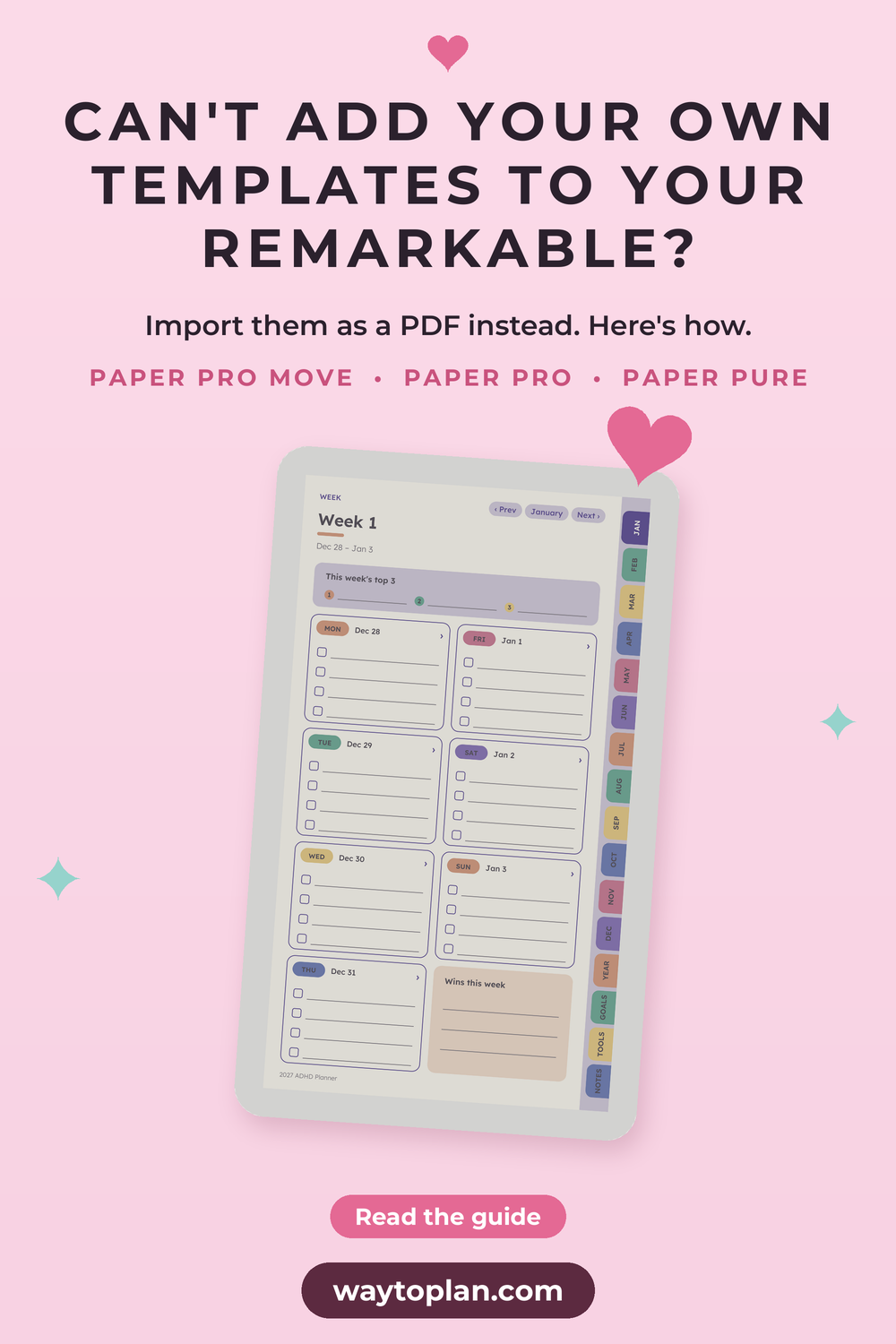
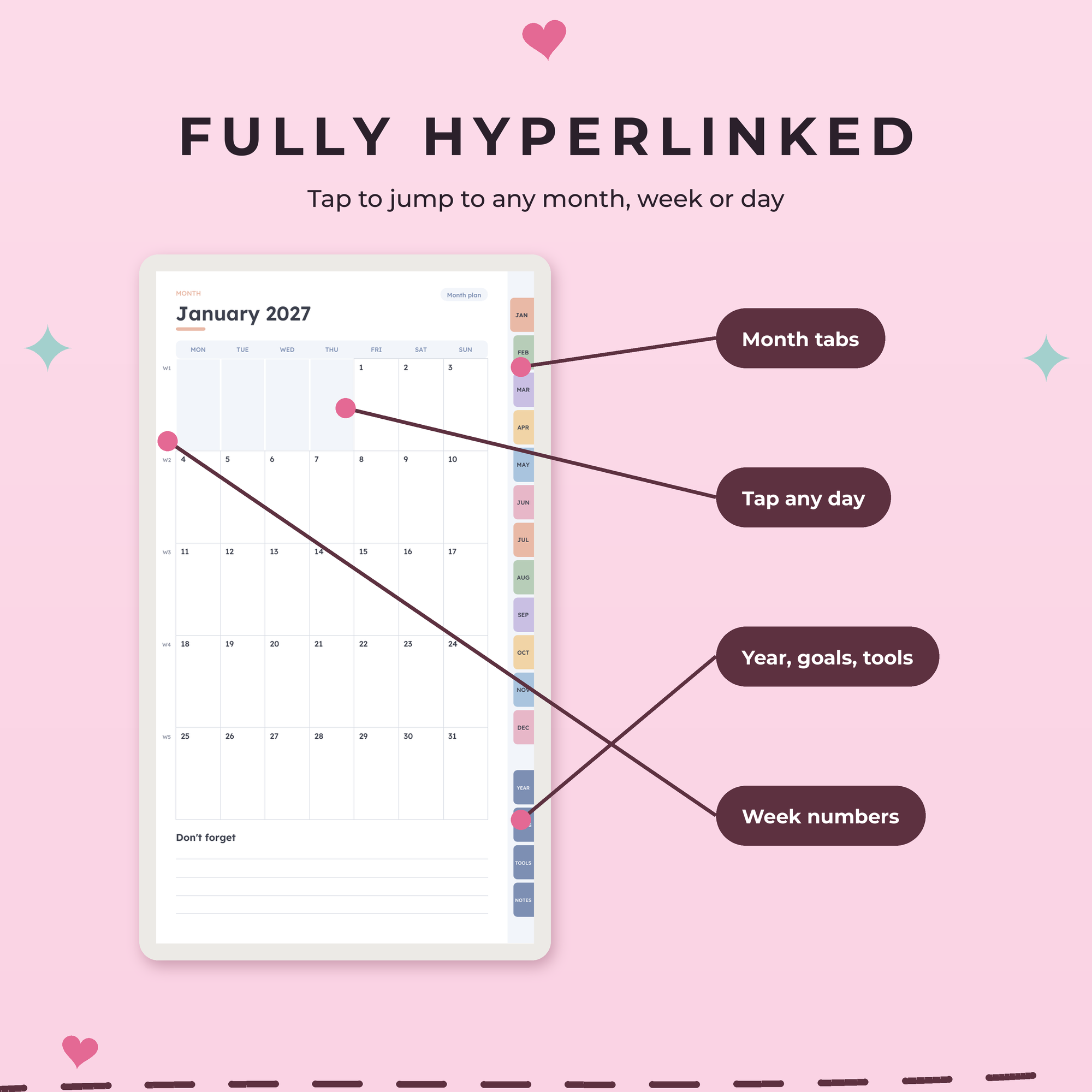
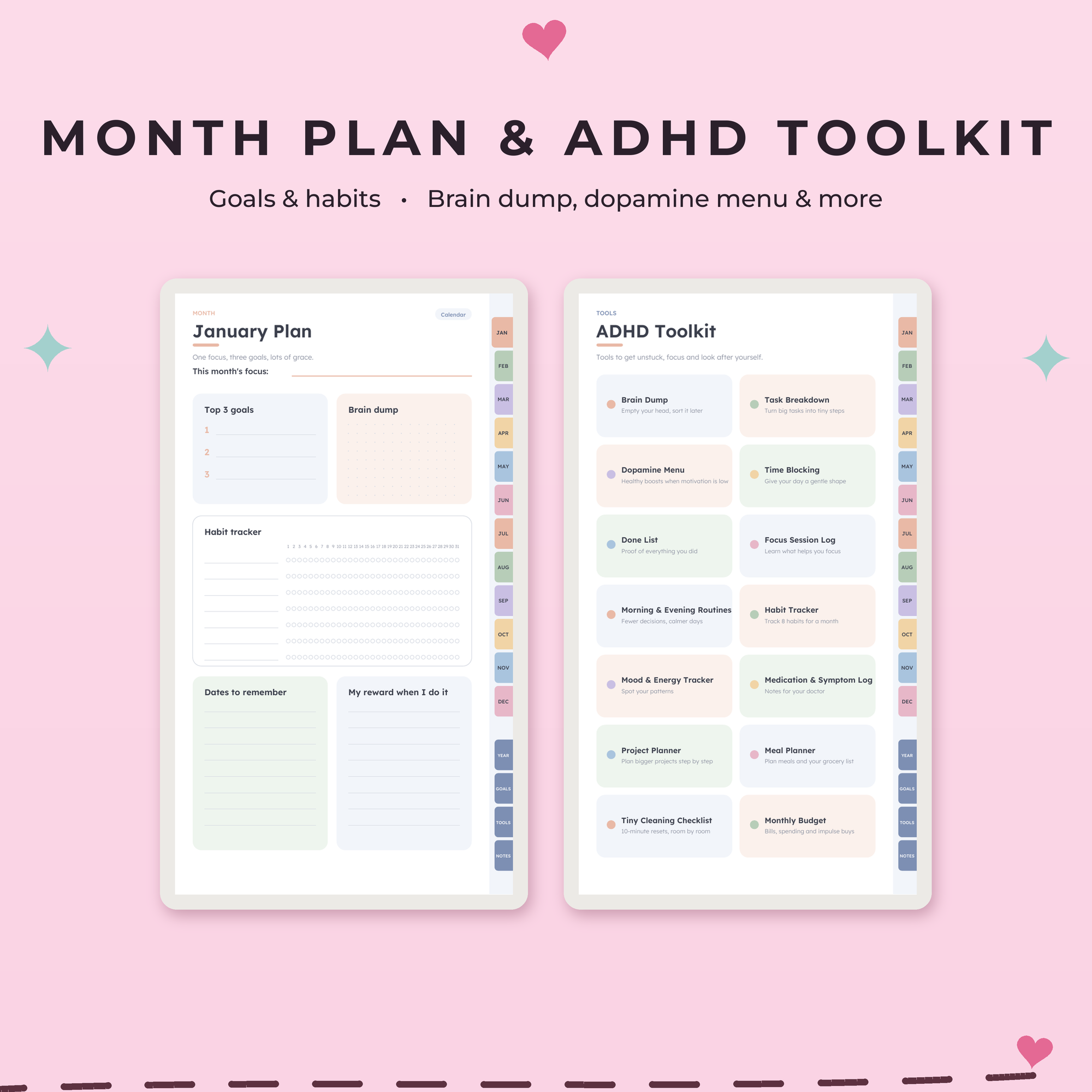
- Tap a tab or date to jump there. Month tabs, calendar dates and toolkit buttons are all links, so you never have to swipe through hundreds of pages.
- Write right on the page with your Marker, just like a notebook. Your handwriting stays on top of the PDF.
- Star it. Add your planner to Favorites so it’s one tap away when you wake up the tablet.
- Use the year page as home base. Every page in our planners links back to it, so you can always find today in two taps.
- On the Move, the tabs are sized to tap while you hold the tablet in one hand. Check today’s page on the go, and save the weekly plan for a quiet moment.
Troubleshooting
- The planner doesn’t show up. Check that your tablet is on Wi-Fi and signed in to the same reMarkable account as the app or website. Give it a minute to sync.
- The pages look small, or there are empty bars. You probably imported the version for another model. Check the file name and import the one made for your reMarkable.
- A link doesn’t respond. Tap once and wait a moment. E-ink pages take a little longer to load than a phone screen. Make sure your tablet’s software is up to date.
- The upload fails. Browser uploads stop at 100 MB. Use the desktop or phone app instead, or check that you uploaded a single PDF and not the whole ZIP.
Ready to plan on your reMarkable?
Every Way to Plan template is made for one specific screen, fully hyperlinked and designed with ADHD brains in mind: calm layouts, just 3 priorities a day and big tap targets. Right- and left-handed versions are always included.
- reMarkable Paper Pro Move templates: laid out for the tall 7.3-inch screen
- reMarkable Paper Pro templates: room to write on the 11.8-inch color screen
- reMarkable Paper Pure templates and reMarkable 2 templates: crisp greyscale designs
For the Move, start with the ADHD Planner 2027 (every date of 2027 linked) or the undated ADHD Life Planner, which you can start any day. Want it all? The reMarkable Paper Pro Move bundle has 9 planners, from meal and cleaning planners to a budget planner and habit tracker. There’s also a Paper Pro bundle and a Paper Pure bundle.
Using a different tablet? Here’s how to add PDF planners to your Supernote.
Save this guide for later
Pin it to your Pinterest board so you can find it again when you need it.