
How to Add PDF Planners and Templates to Your Supernote Nomad and Manta
Step-by-step: how to get PDF planners and templates onto your Supernote Nomad (A6 X2) or Manta (A5 X2) with USB, Browse & Access, the Partner app or cloud sync, plus tips for hyperlinked planners.
You just bought a hyperlinked planner for your Supernote, you download the file, and then… how do you actually get it onto the device? The good news: it takes about two minutes, and there are several ways to do it. This guide walks you through every option for the Supernote Nomad (A6 X2) and Supernote Manta (A5 X2), plus a few tips so your planner works smoothly from day one.
Before you start: unzip and pick your version
Most planners, including the ones in our Supernote templates shop, arrive as a ZIP file with several PDFs inside. Unzip it first (on a phone, the Files app can do this) and pick the one version you want, for example right-handed or left-handed, lined or dot grid. Only transfer the PDF you will use, so your device stays tidy.
Make sure you choose the file made for your device. A planner sized for the 7.8-inch Nomad will look small on the 10.7-inch Manta, and a Manta planner will feel cramped on the Nomad.
Option 1: USB cable (simplest on Windows)
- Connect your Supernote to your computer with the USB-C cable.
- Open the Supernote in File Explorer (Windows). On a Mac you first need a free MTP app such as OpenMTP or Android File Transfer, because a Mac does not show the Supernote on its own.
- Drag your PDF into the Document folder.
- Unplug, open Document on your Supernote and tap the file.
Option 2: Browse & Access (over Wi-Fi, no cable)
This is the easiest option if your computer and Supernote are on the same Wi-Fi network.
- On your Supernote, swipe down from the top of the screen and tap the Browse & Access icon.
- Type the web address shown on your Supernote into a browser on your computer or phone.
- Tap OK on the Supernote.
- In the browser, open the Document folder, click Upload and choose your PDF.
Keep both devices on the same Wi-Fi until the upload finishes.
Option 3: Supernote Partner app (from your phone)
Perfect when you bought the planner on your phone.
- On the Supernote, go to Settings > My Device > Supernote Linking and switch it on. Keep the Supernote and your phone on the same Wi-Fi.
- On your phone, open the PDF, tap share or “open in” and choose Supernote Partner.
- Tap Transfer and choose your Supernote. Confirm the pairing code on the Supernote.
- The file arrives in the INBOX folder. You can open it from there or move it to Document to keep things organized.
Option 4: Supernote Cloud, Dropbox or Google Drive
If you already sync your Supernote with a cloud service, put the PDF in a synced folder on your computer or phone. Then on the Supernote, swipe down and tap the sync icon. Not set up yet? Go to Settings > Drive, choose your service, select the folders to sync and tap Save.
How to use your hyperlinked planner
- Tap the tabs and links with your pen to jump between months, weeks, days and sections. No more swiping through hundreds of pages.
- Write directly on the pages, just like any PDF on your Supernote.
- Use the index or year page as home base. Most planners have a link back to it on every page, so you never get lost.
- Want a copy with your handwriting? Supernote keeps your notes separate from the original PDF. Export the document with annotations if you want to share or print a filled-in page.
Troubleshooting
- My Mac doesn’t see the Supernote. Install OpenMTP or Android File Transfer, or use Browse & Access instead.
- The pages look too small or too big. You probably have the version for the other Supernote model. Check the file name and transfer the right one.
- I can’t find my file. Files from the Partner app go to INBOX, cloud files appear in the folder you synced, and USB or Browse & Access files are wherever you dropped them (we recommend Document).
Ready to plan on your Supernote?
Every Way to Plan template is made for one specific screen, fully hyperlinked and designed with ADHD brains in mind: calm layouts, big tap targets and no overwhelm. Right- and left-handed versions are always included.
- Supernote Nomad templates: sized for the 7.8-inch screen you carry everywhere
- Supernote Manta templates: roomy layouts for the 10.7-inch screen
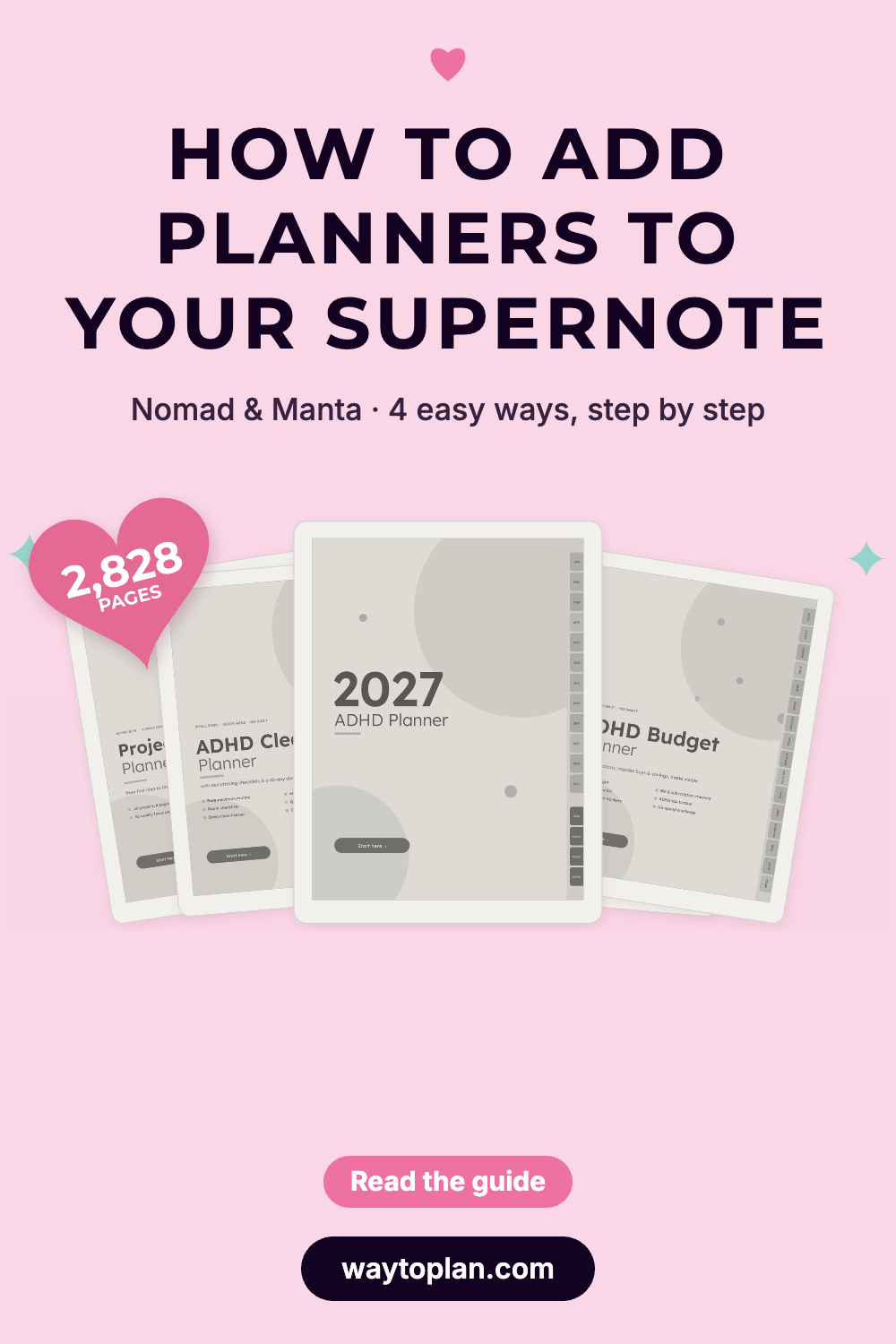
Want everything at once? The ADHD planner bundle includes all 9 planners, from the ADHD Planner 2027 to meal, cleaning and budget planners: get the Nomad bundle or the Manta bundle.
Save this guide for later
Pin it to your Pinterest board so you can find it again the next time you download a new planner.