Kindle Scribe Templates: Which Ones to Get and How to Use Them
Why custom Kindle Scribe templates come as PDFs, what makes a good one, and which planners, journals and trackers to start with.
Kindle Scribe templates are PDF planners, journals and trackers made to fit the Scribe’s screen. You send them to your Kindle with Send to Kindle and write directly on the pages. The Scribe’s notebooks have built-in templates too, but you can’t add your own to that list, so custom templates always come as PDFs.
The Kindle Scribe is lovely to write on, but a blank notebook only gets you so far. Once you want a weekly plan, a meal plan or a habit tracker, you need a template. Here’s what to look for, which ones are worth starting with, and how to get them onto your Scribe.
Does the Kindle Scribe have templates?
Yes, the Kindle Scribe’s own notebooks come with a set of built-in templates. You can’t add your own files to that list, though. That’s why planners and other custom templates for the Scribe come as PDFs: you send the PDF to your Kindle, it appears in your Library, and you write on it with the pen like any notebook.
One thing to know: you can’t add or duplicate pages inside a PDF on the Scribe. A good template already includes every page you’ll need, like all 365 days of a year or 100 meeting pages.
What makes a good Kindle Scribe template?
A good Kindle Scribe template is made for the Scribe’s screen, easy to move around in, and calm enough to fill in every day. I test my files on my own Kindle Scribe, the black-and-white one, and I sometimes journal on it with my own templates. These are the things that make the difference:
- Made for the Scribe’s screen shape. A page made for an iPad or a reMarkable leaves white bars or tiny text on the Scribe.
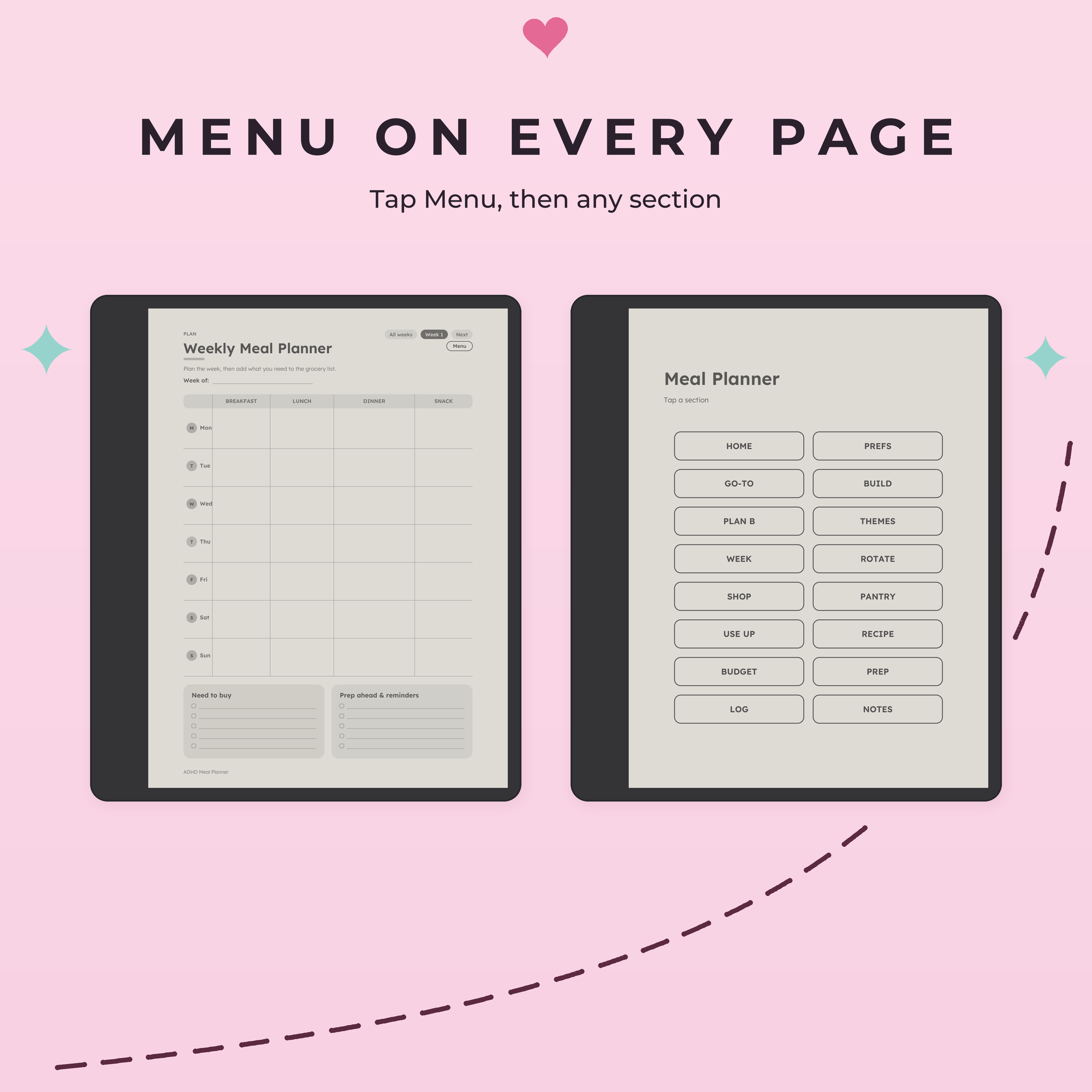
- A Menu button, not side tabs. Taps right at the edge of the Scribe’s screen don’t always register. A Menu button at the top of every page works every time, and it works the same for left- and right-handed writers.
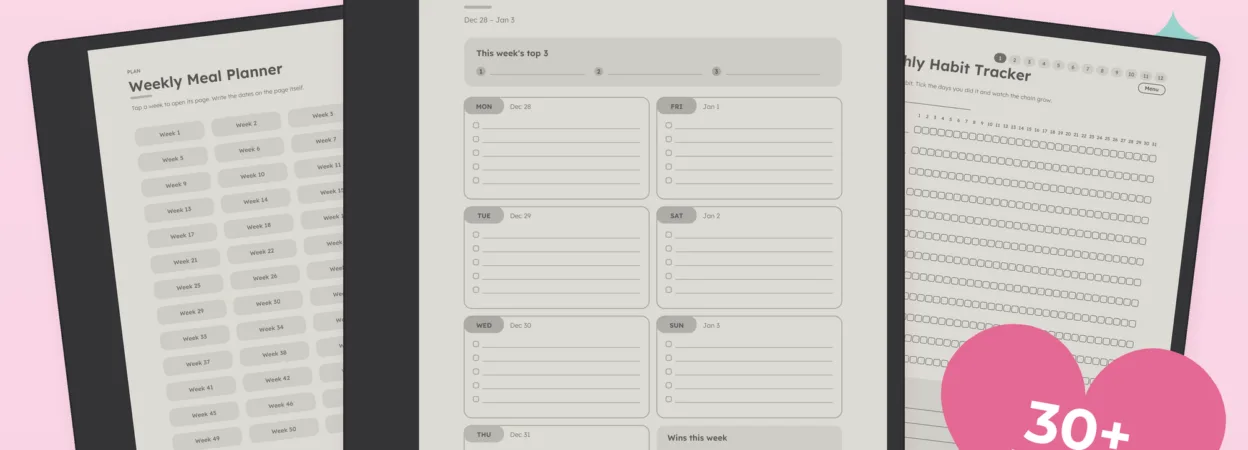
- Hyperlinked. Tap a date or a section and you jump straight there, instead of swiping through hundreds of pages. Here’s more on how hyperlinked planners work.
- Greyscale or color to match your Scribe. Greyscale designs stay crisp on the black-and-white Scribe. On the Kindle Scribe Colorsoft, soft color helps you find sections at a glance.
- A calm layout. Busy, crowded pages don’t work for me. A short list of a few things a day, which I can check off, does.
Which Kindle Scribe templates should you start with?
Start with one template for the thing that slips most often, not a whole system at once. These are the ones people usually begin with:
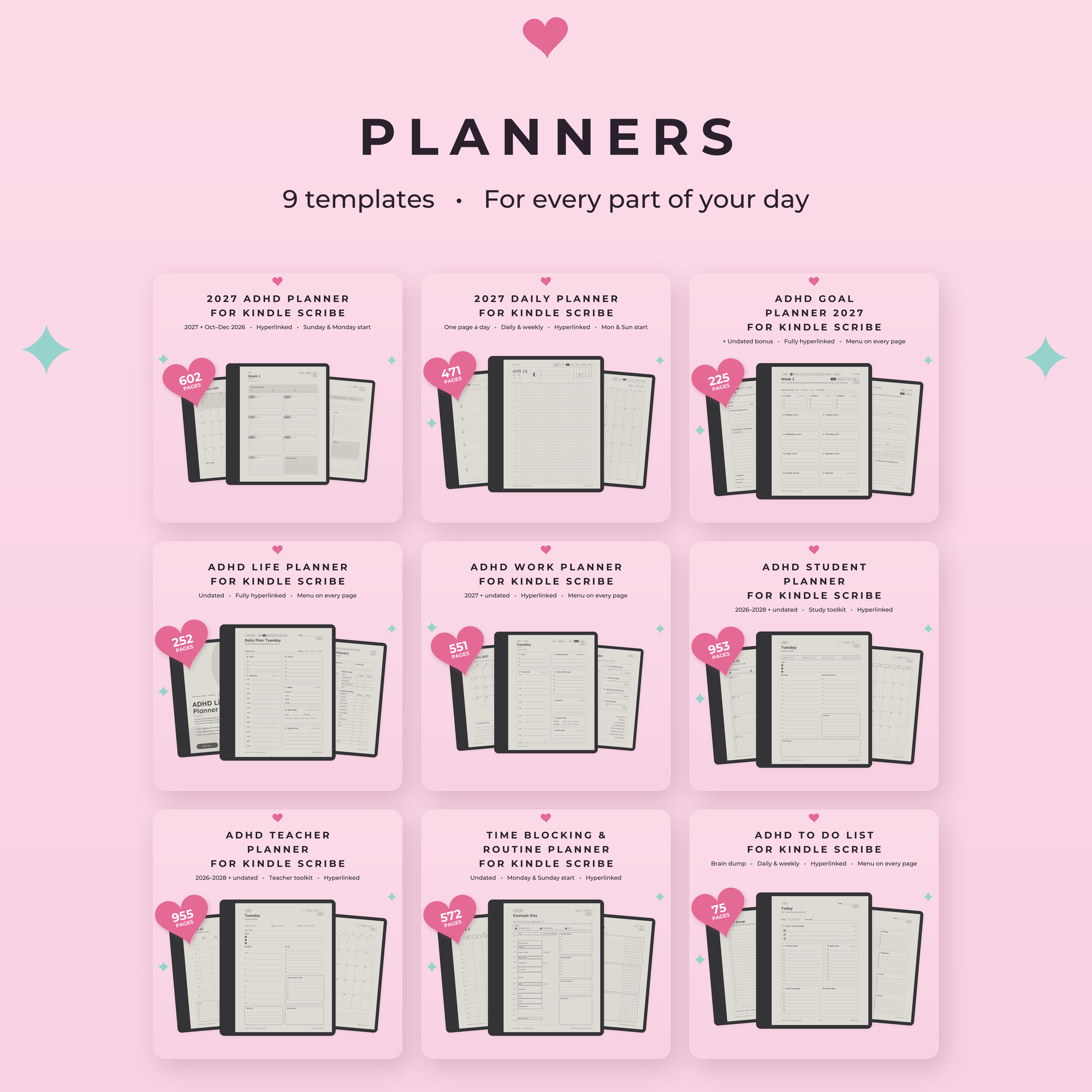
- To plan your year: the ADHD Planner 2027 with every date linked, or the 2027 Daily Planner with one page a day.
- To get through today: the ADHD To Do List, which starts with a brain dump, or the Time Blocking & Routine Planner. Prefer to start any day? The ADHD Life Planner is undated.
- For home and money: the Cleaning Planner, Meal Planner, Recipe Binder, Budget Planner and Home Management Binder.
- For health and habits: the Habit Tracker, Medical Binder, Self Care Planner and Workout & Food Planner.
- For journaling: the Daily Journal, Gratitude Journal, 5 Year Journal, Shadow Work Journal and Commonplace Book.
- For work and school: the Work Planner, Meeting Notes, Project Planner, Student Planner, Teacher Planner and a Digital Notebook with 8 subjects.
Overwhelmed before you even start? This guide on how to do an ADHD brain dump shows how to pick just three things for today.
Are there free Kindle Scribe templates?
Yes. The Scribe’s built-in notebook templates are free, and you’ll find simple free PDFs online too. They’re great for lined or grid pages. A full planner is a different job: a year of dated, linked pages has thousands of links, and one wrong link sends you to the wrong week. That’s where a ready-made template saves hours.
Should you buy one template or a bundle?
Buy a single template if you know exactly what you need, and a bundle if you’d use three or more. There are two Kindle Scribe bundles:
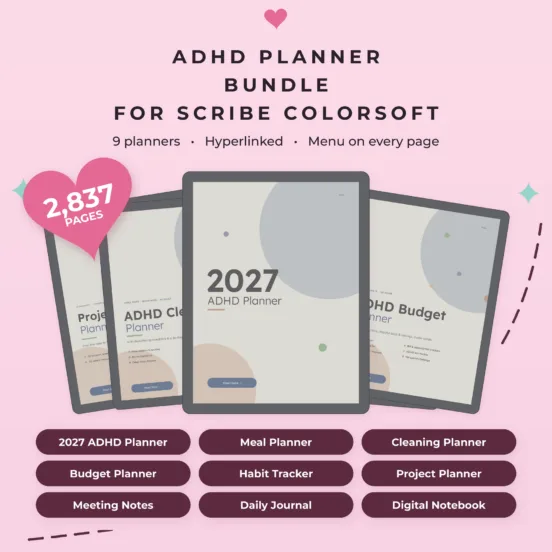
- The 9-template bundle covers the basics: the 2027 planner, a daily journal, meal, cleaning and budget planners, a habit tracker, a project planner, meeting notes and a digital notebook.
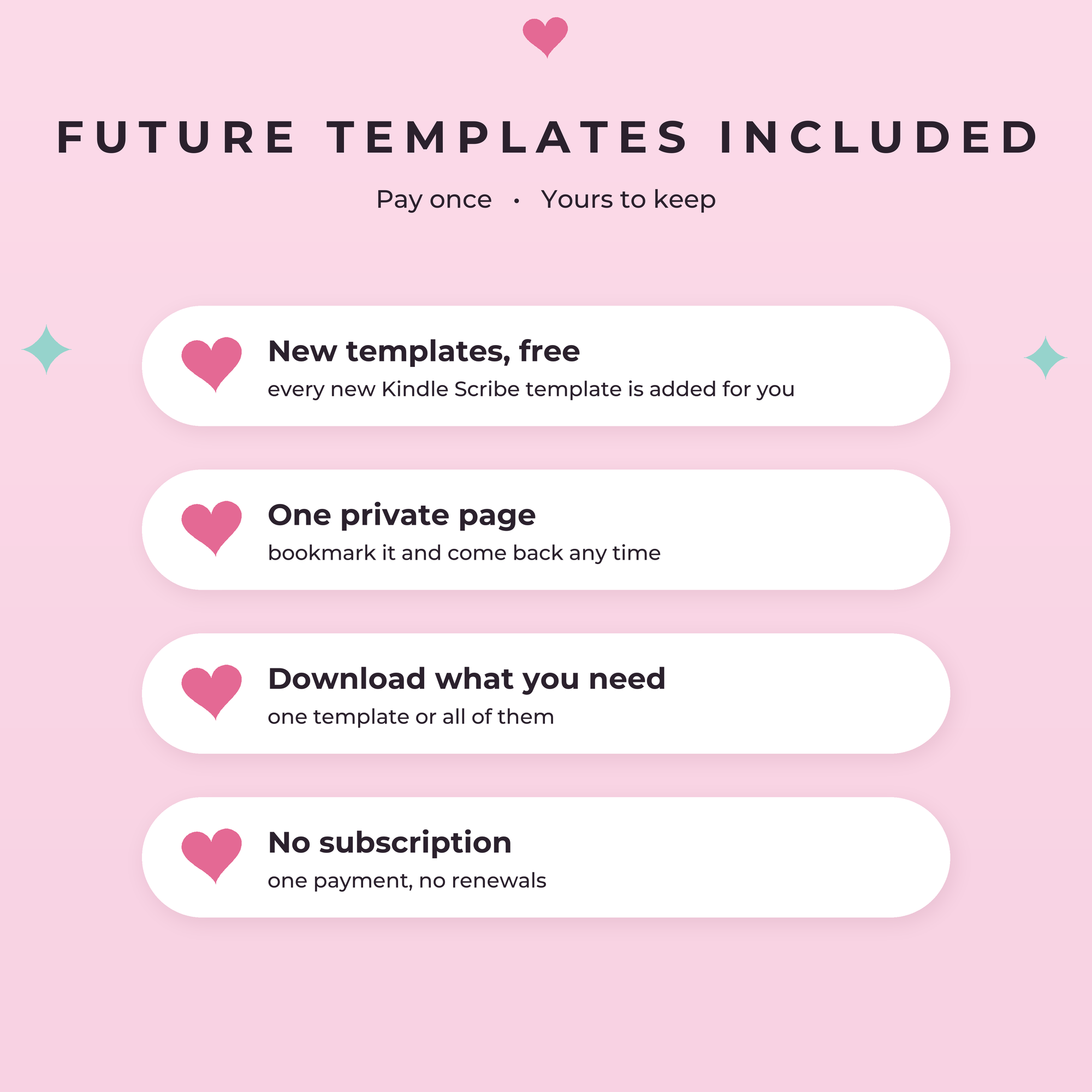
- The all-templates bundle has every Kindle Scribe template in the shop, 31 today, and every new one we add later, at no extra cost.

If something you need is missing, just ask. Customers often ask me for changes, and I usually make them.
How do you put a template on your Kindle Scribe?
Unzip the download, pick the PDF made for your model, and send it with Send to Kindle, either on the website or by email. Don’t copy it over a USB cable: Amazon doesn’t support handwriting on PDFs loaded that way. This guide shows how to put a planner on your Kindle Scribe step by step.
Where can you find Kindle Scribe templates?
Every Way to Plan Kindle template is hyperlinked, has a Menu button on every page and is made for one specific screen.
- Kindle Scribe templates: greyscale designs for the black-and-white Scribe
- Kindle Scribe Colorsoft templates: soft color, made for the color screen
- Bundles: the Kindle Scribe Templates Bundle and the Kindle Scribe Colorsoft Templates Bundle with every template, or the 9-template Kindle Scribe bundle and Colorsoft bundle
Frequently asked questions
Not to the built-in notebook template list. Custom templates come as PDFs instead: you send them to your Kindle with Send to Kindle, and you can write directly on every page.
A PDF made for the Scribe opens on the Colorsoft, but it shows in greyscale. Colorsoft versions are designed in soft color for the color screen, so pick the version made for your model.
No. You can’t add or duplicate pages inside a PDF on the Scribe, so a good template already includes every page you’ll need, such as all 365 days and extra notes pages.
Taps right at the edge of the Scribe’s screen don’t always register. That’s why Way to Plan’s Kindle templates use a Menu button at the top of every page instead of tabs along the side.