Kindle Scribe vs reMarkable vs Supernote for Planning: What Each Does With a PDF Planner
Screen, color, pen, getting files on, writing on PDFs, links and custom templates: how the Kindle Scribe, reMarkable and Supernote handle a PDF planner.
All three let you write directly on a PDF planner. The Kindle Scribe comes with a pen that never needs charging and has a color model. reMarkable has the most screen sizes, with color on the Paper Pro and Paper Pro Move. Supernote is the only one that officially lets you use your own PDF as a notebook template.
If you’re choosing an e-ink tablet mainly to plan on, most comparisons don’t help much. They talk about reading, battery life and handwriting-to-text. For a planner, a different list matters: does the page fit the screen, can you write on the PDF, do the links work, and how easy is it to get the file on. This guide compares exactly that, using the official spec pages of each brand.
One honest note: I own a black-and-white Kindle Scribe, which I sometimes journal on and test my files on. I don’t own a reMarkable or Supernote, so everything about those comes from the makers’ own pages, linked below. Specs change, so check those pages before you buy.
Which models are we comparing?
We’re comparing the current models from all three brands, as listed on their official pages in November 2026:
- Kindle Scribe: the Kindle Scribe, the Kindle Scribe Without Front Light and the color Kindle Scribe Colorsoft, all with an 11-inch screen (Amazon).
- reMarkable: the Paper Pro (11.8 inches, color), the Paper Pro Move (7.3 inches, color) and the Paper Pure (10.3 inches, black and white) (reMarkable). The reMarkable 2 is discontinued, but plenty of people still plan on one.
- Supernote: the Manta (10.7 inches) and the Nomad (7.8 inches), both black and white without a front light (Manta, Nomad).
How do they compare for planning at a glance?
| Kindle Scribe | reMarkable | Supernote | |
|---|---|---|---|
| Screen sizes | 11″ | 7.3″, 10.3″, 11.8″ | 7.8″, 10.7″ |
| Color | Colorsoft model | Paper Pro and Paper Pro Move | No |
| Pen in the box | Yes, never needs charging | Yes, charges on the tablet | No, sold separately, no charging |
| Write on a PDF | Yes, if sent with Send to Kindle | Yes | Yes |
| Your own PDF as a template | No official way | No | Yes |
Which screen size works best for a planner?
A screen of 10 to 12 inches gives a planner page room to breathe, and a 7 to 8-inch screen is easier to carry. The bigger screens (Kindle Scribe, reMarkable Paper Pro, Paper Pure, Supernote Manta) fit a week on one page with space to write. The small ones (reMarkable Paper Pro Move, Supernote Nomad) feel more like a pocket notebook: great for today’s list, tighter for a full week.
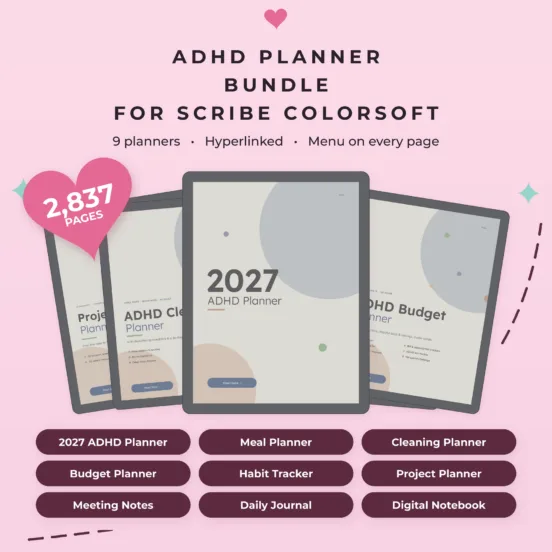
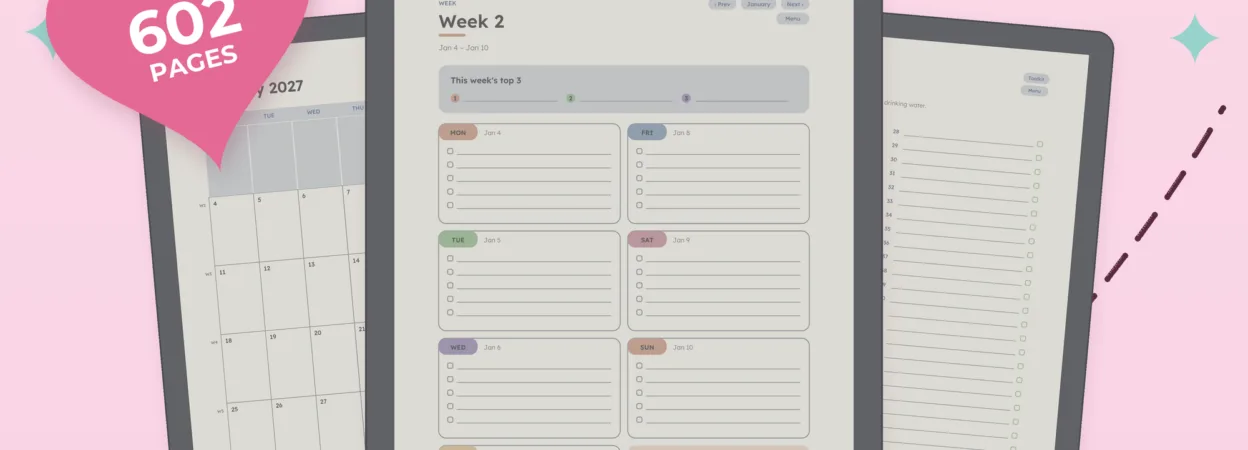
Whatever size you pick, use a planner made for that exact screen. Every tablet has a different shape, and a page made for another one shows white bars or tiny text. That’s also why our planners come in a separate version for each device.
Do you need a color screen for planning?
No, a planner works fine in black and white, but color makes sections easier to spot. The Kindle Scribe Colorsoft shows color at 150 ppi and black and white at 300 ppi (Amazon). On reMarkable, the Paper Pro and Paper Pro Move have color screens (reMarkable). Supernote’s tablets are black and white only.
On a black-and-white screen, a planner designed in greyscale stays crisper than a color planner shown in grey, so pick the version made for your screen.
Is the pen included, and does it need charging?
The Kindle Scribe and reMarkable include a pen, and Supernote sells it separately. The details:
- Kindle Scribe: the pen is included and never needs charging. Amazon sums it up as “no pairing, no charging, no pen to buy” (Amazon).
- reMarkable: the Paper Pro, Paper Pro Move and Paper Pure come with a Marker (reMarkable). It charges while it’s attached to the tablet (reMarkable support).
- Supernote: the pen isn’t in the box (Supernote). Supernote pens are battery-free, so they never need charging (Supernote).
How do you get a PDF planner onto each tablet?
All three let you send a PDF from your computer or phone in a few minutes, each in its own way:
- Kindle Scribe: use Send to Kindle, on the website, by email or in the app. The website takes files up to 200 MB (Amazon). Here’s how to put a planner on your Kindle Scribe.
- reMarkable: import with the desktop app, the phone app or my.remarkable.com. This guide shows how to import templates to your reMarkable.
- Supernote: use a USB cable, Browse & Access over Wi-Fi, the Partner app or a synced cloud folder (Supernote support). See how to add PDF planners to your Supernote.
Can you write directly on a PDF planner?
Yes, all three let you write on a PDF, with one catch on the Kindle. Amazon says you can write directly on PDF documents on the Kindle Scribe, but not on PDFs loaded over a USB-C cable (Amazon help). Send it with Send to Kindle instead and it works.
On a reMarkable and a Supernote, you write on an imported PDF like any document. On a Supernote, your writing is kept on top of the original file, and you export the document if you want a copy with your notes on it.
Do planner links work on each tablet?
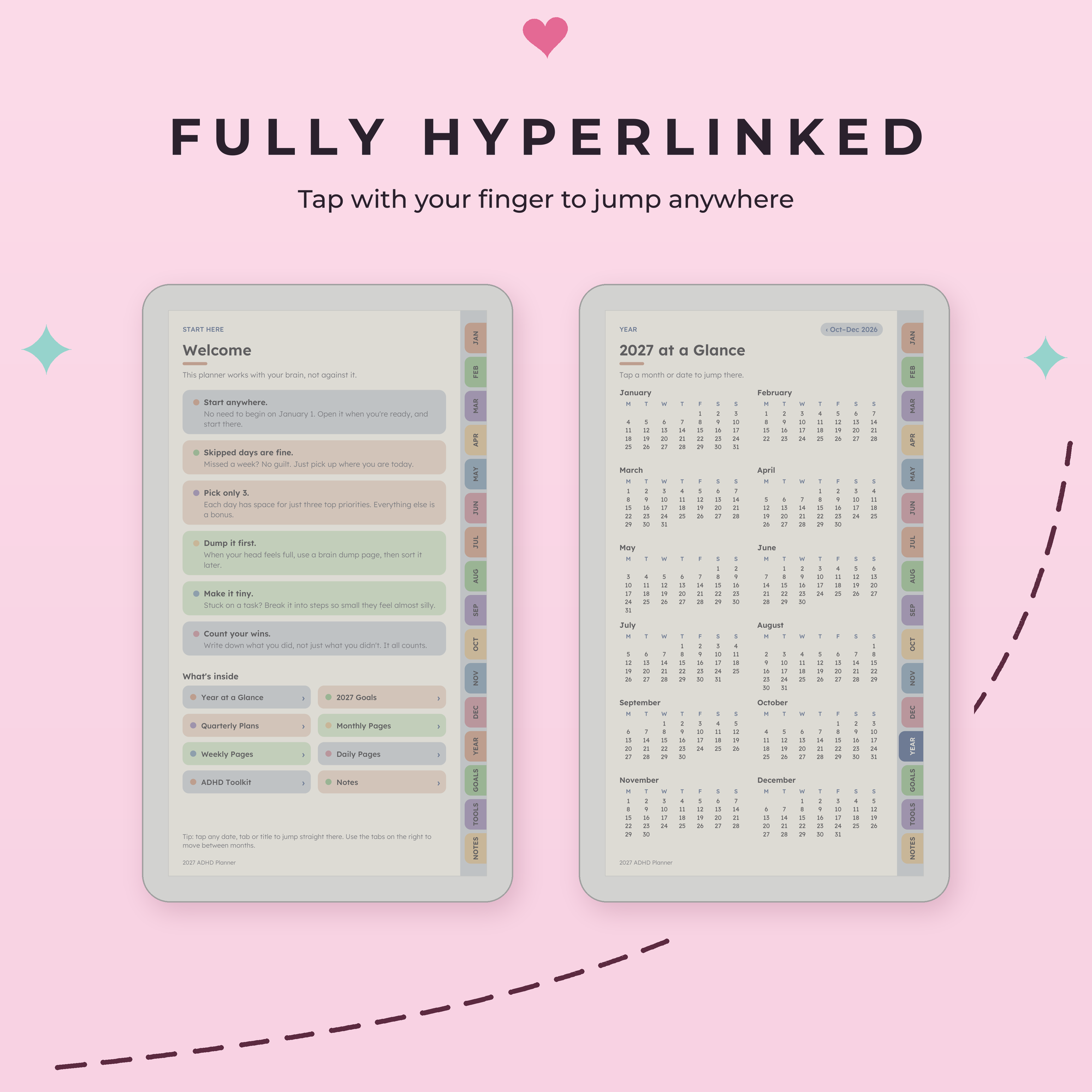
Links in a PDF planner let you tap a date or a section and jump straight there, and they work on all three. On the Kindle Scribe, you tap a link with your finger. On a reMarkable, you tap it too (reMarkable added PDF links in 2021, see their update notes). On a Supernote, you tap links with the pen, and the Supernote manual notes they also work when you use a PDF as a template.
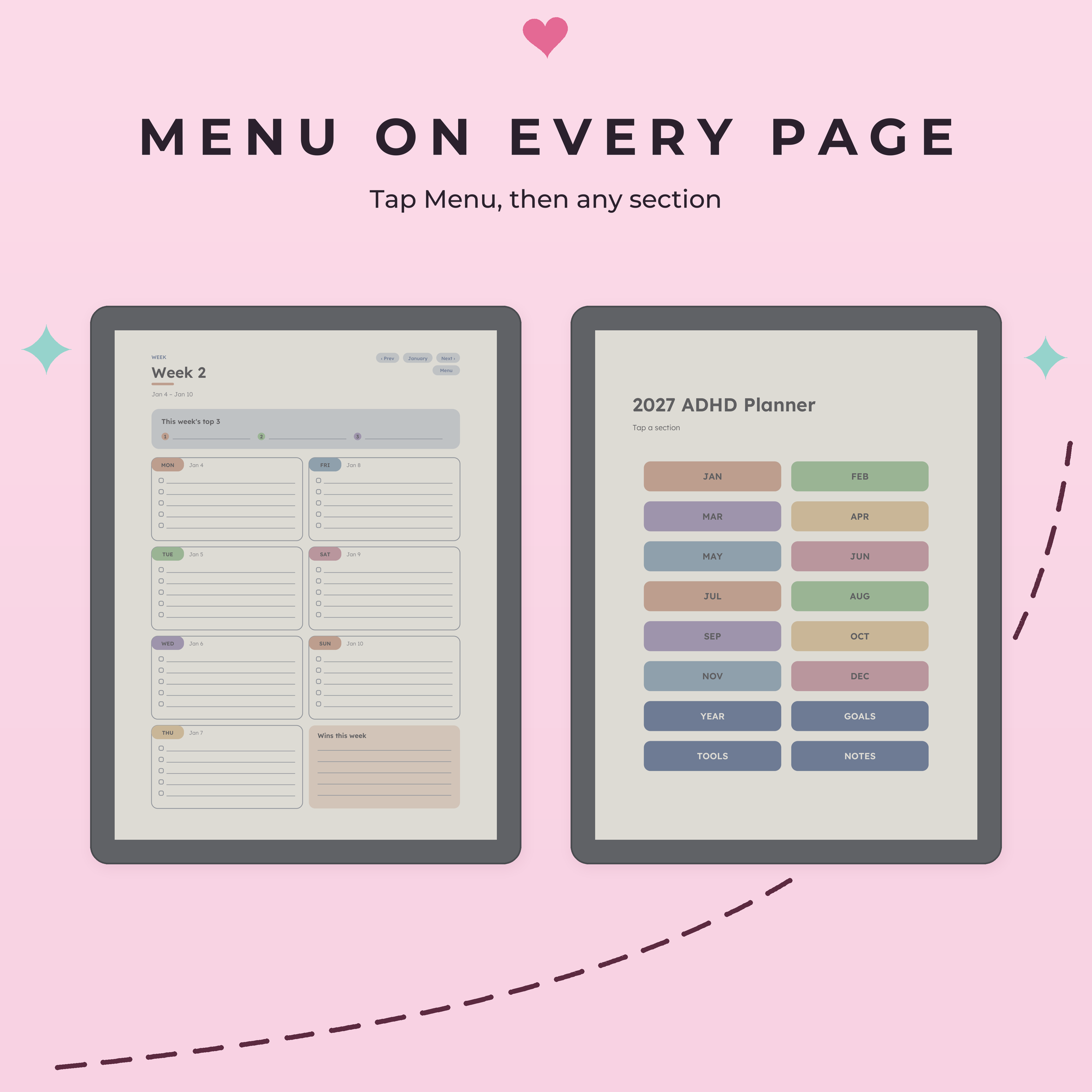
On the Kindle Scribe, taps right at the edge of the screen don’t always register, so our Kindle planners have a Menu button at the top of every page instead of side tabs. Read more about how hyperlinked planners work.
Can you use your own planner as a notebook template?
Only on the Supernote. On a Supernote, you put a PNG, JPG or PDF file in the MyStyle folder and choose it as a template for new notebooks (Supernote support). reMarkable says custom templates are not supported, so imported PDFs stay separate documents (reMarkable support). The Kindle Scribe comes with lined, blank, grid and planner templates (Amazon), and there’s no official way to add your own.
For a dated planner this matters less than it sounds. A full planner PDF already has every page you need, so you open it once and write in it all year.
Which one should you choose for planning?
Choose by the thing you’ll notice every day:
- Kindle Scribe if you want a big screen, a pen you never charge, and color as an option with the Colorsoft. It also works as a Kindle for your books.
- reMarkable Paper Pro Move or Supernote Nomad if you want a planner that goes everywhere with you.
- reMarkable Paper Pro if you want the biggest color screen of the three.
- Supernote if you want to turn your own pages into notebook templates, or prefer a screen without a front light.
Whichever you pick, planning is easier with a planner made for its screen. If you’d like a whole year of planners at once, every device has an all-templates bundle with every new template included.

- Kindle Scribe templates and Kindle Scribe Colorsoft templates
- reMarkable templates for the Paper Pro Move, Paper Pro, Paper Pure and reMarkable 2
- Supernote templates for the Nomad and Manta
Frequently asked questions
Both handle a PDF planner well. The Kindle Scribe includes a pen that never needs charging and has one 11-inch size, with color on the Colorsoft. reMarkable has more sizes, from the 7.3-inch Paper Pro Move to the 11.8-inch Paper Pro.
No. The Supernote Manta and Nomad don’t include a pen in the box, so you buy one separately. Supernote pens are battery-free, so they never need charging.
Yes, if you send the PDF with Send to Kindle. Amazon doesn’t support handwriting on PDFs loaded over a USB-C cable, so always use the website, email or the Send to Kindle app.
No. reMarkable says custom templates are not supported. You import your planner as a PDF instead, which you write on like any document. Supernote is the only one of the three that officially lets you use your own PDF as a template.